
A Chrome browser extension that provides quick access to multiple AI services including ChatGPT, Claude, Gemini, Copilot, and others through a convenient side panel. Users can toggle the panel with a keyboard shortcut or icon click, customize services, extract and format web content for AI analysis, and browse conversation history across all integrated AI tools.
AI Side Panel Extension: Enhance your productivity with this browser extension that adds a convenient side panel for quick access to popular AI sites like Gemini, ChatGPT, Copilot, Claude, and Deepseek. Easily toggle the panel using the extension icon or ALT + Q shortcut. Perfect for seamless int...
78Stars
24Forks
5Open issues
2Watching
JavaScript v1.5.0 Updated 1 week ago
At a glance
Node.js Actively maintained
README
AI Side Panel Extension
Overview
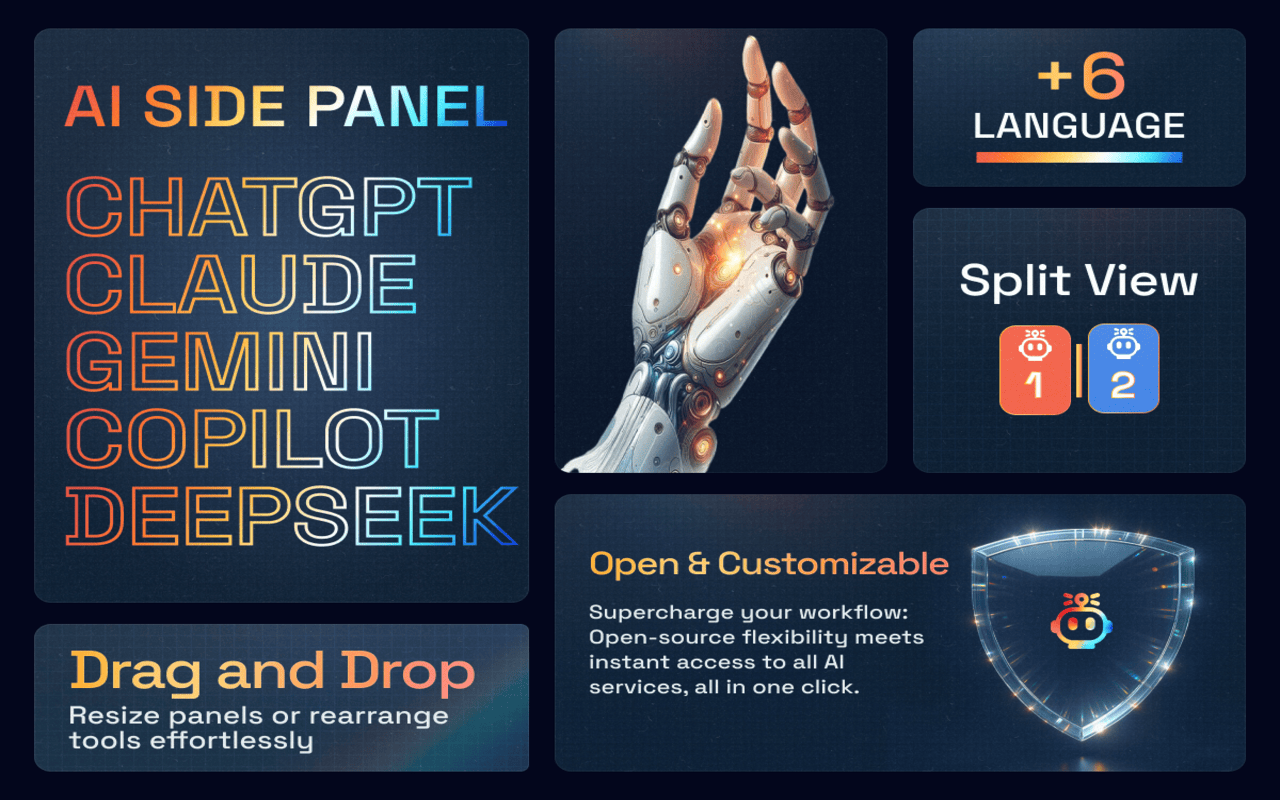
The AI Side Panel Extension for Chrome provides an easy and convenient way to access your favorite AI sites, such as Gemini, ChatGPT, Claude, Copilot, DeepSeek, Grok, Mistral, Qwen, and Github Copilot directly from the Chrome side panel. With quick access via the extension icon or a customizable keyboard shortcut, this extension enhances your productivity and makes engaging with AI tools seamless.





Features
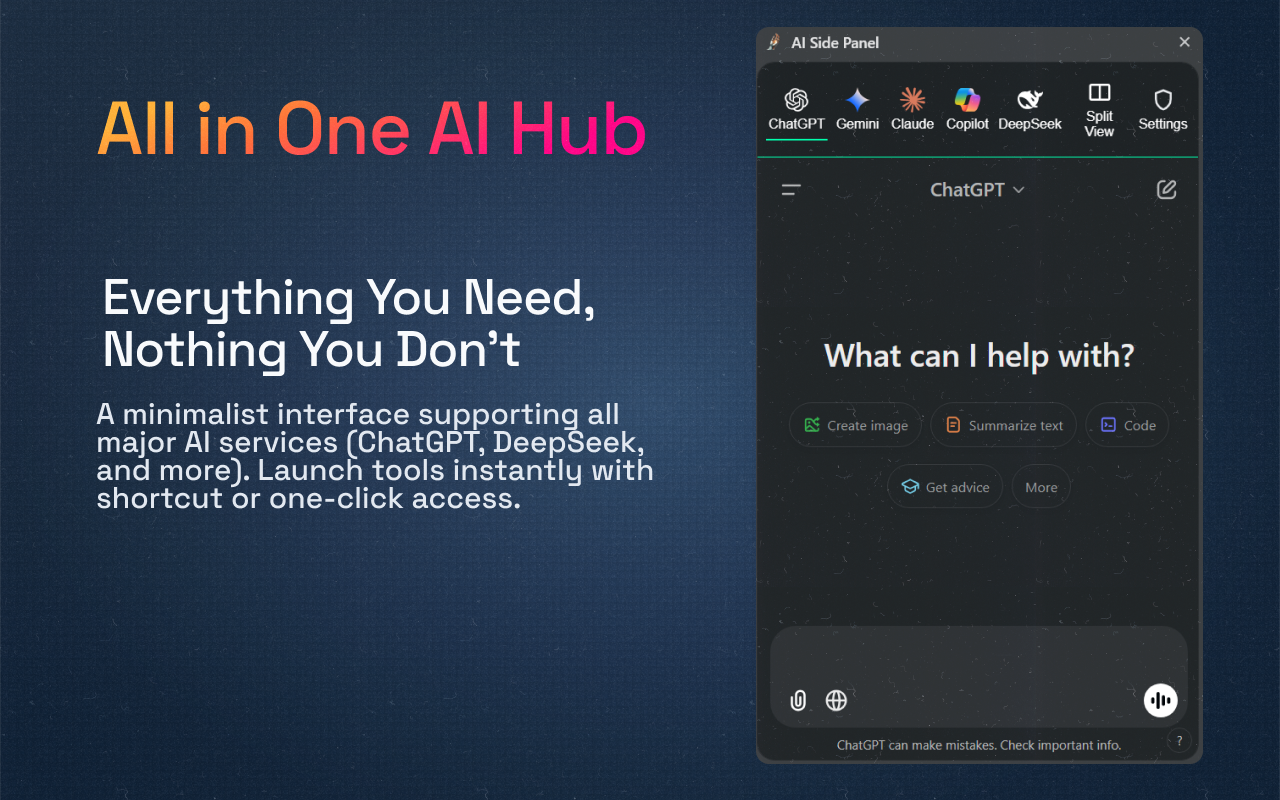
- Instant AI Access: Side panel integration for immediate access to AI tools while browsing.
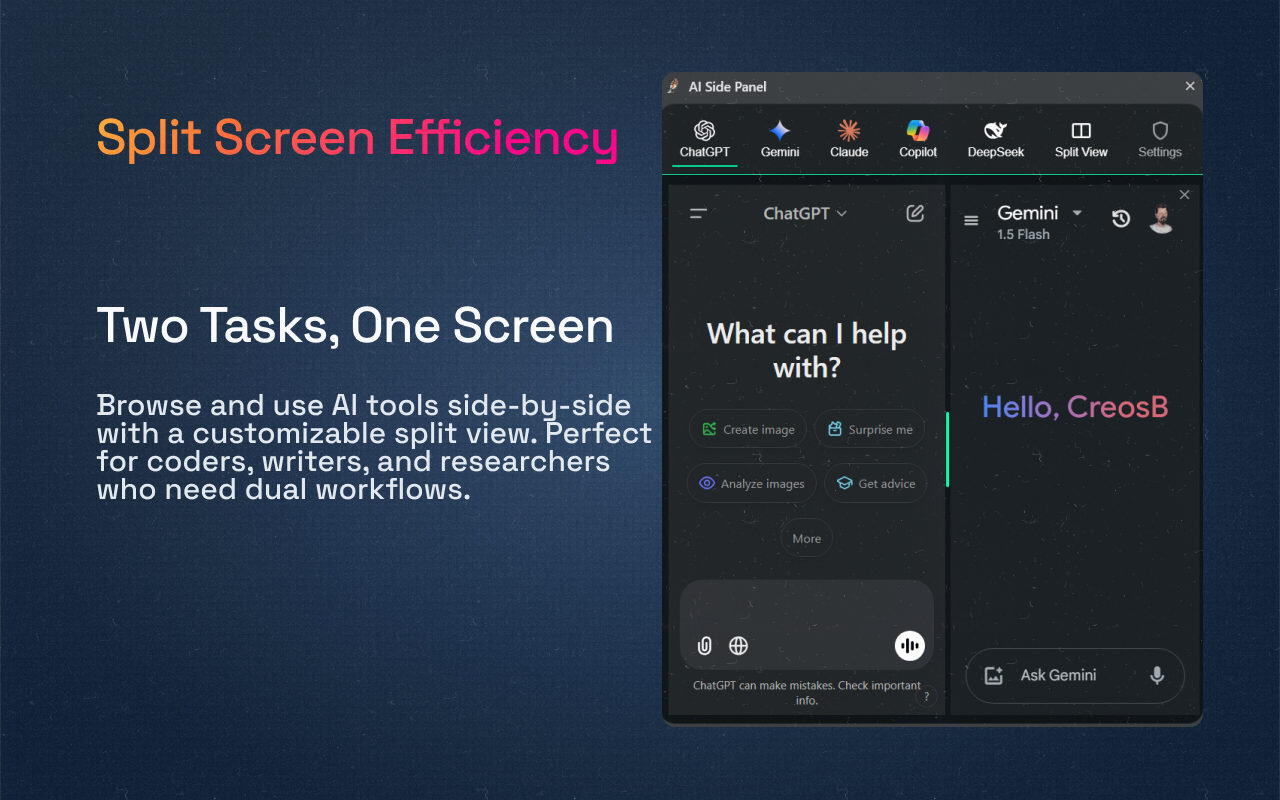
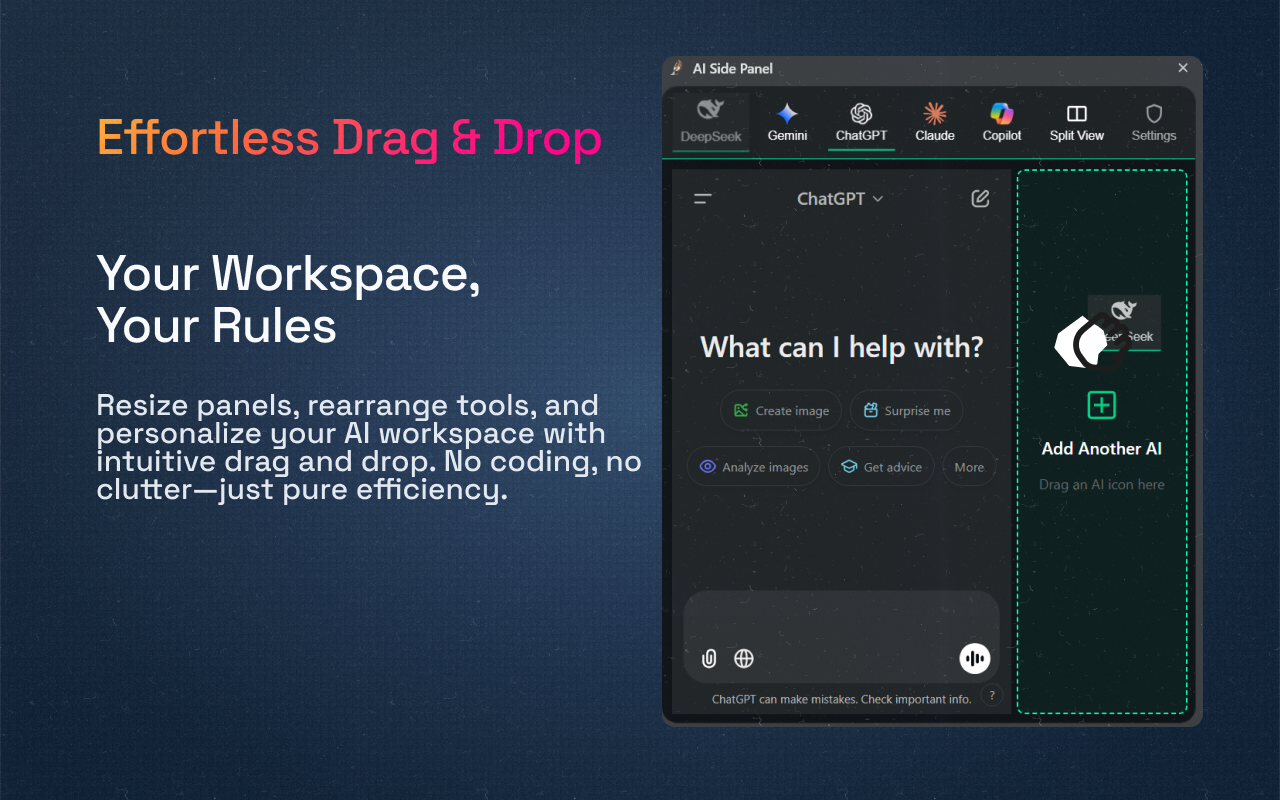
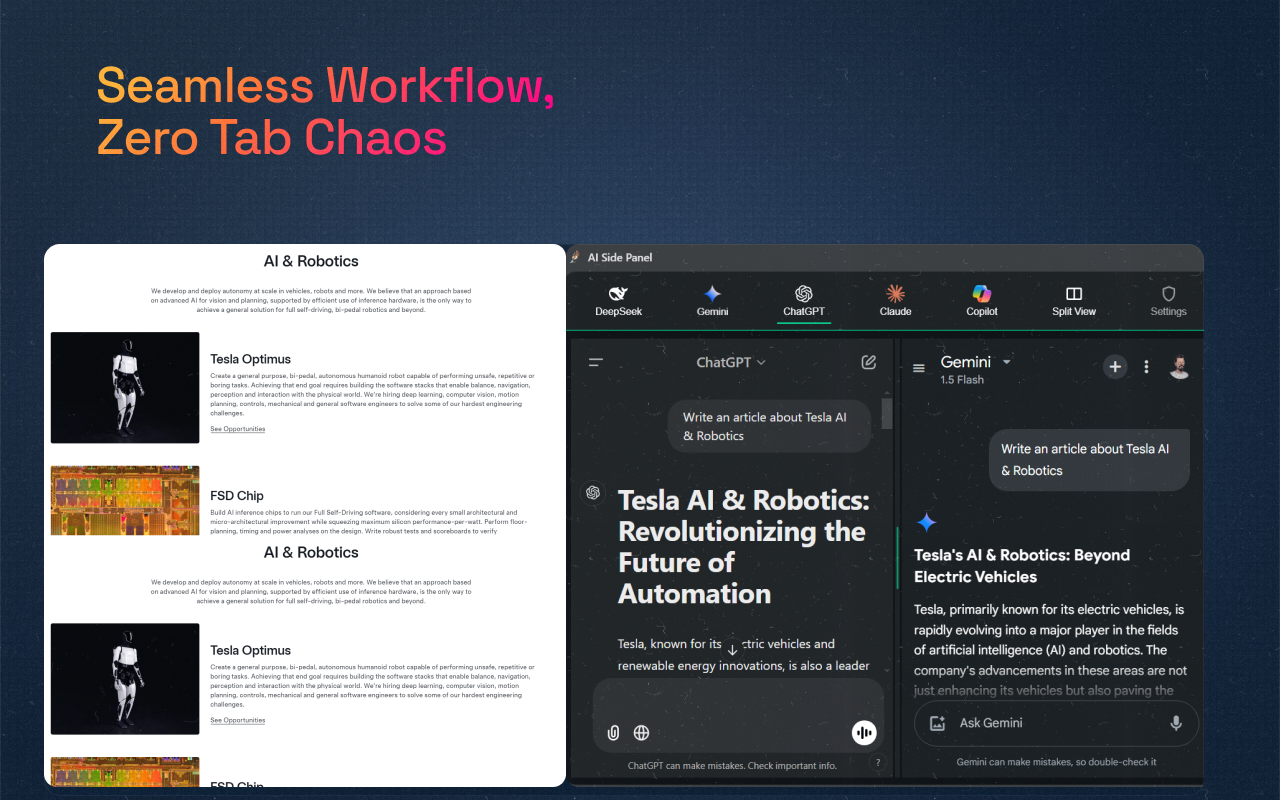
- Split Screen Workflow: Customizable split view for simultaneous browsing and AI interaction.
- Quick Toggle: One-click access via icon or ALT + Q shortcut.
- Minimal Interface: Clean, distraction-free design for focused AI interactions.
- Support for all popular AI services.
- Effortless drag and drop: Easily customizable and highly interactive.
- Custom Service Support: You can add any service via the settings menu. Simply copy the site URL.
- Custom Service (Context Menu): Right-click selected text → pick Service + Action (with editable templates) to send it to your preferred AI instantly.
- Smart content extraction that automatically cleans and formats text from news articles, code repositories, and social posts for AI analysis.
- Prompt History: It enables quick navigation through previous messages in the chat window, supports all major AI services, and is completely optional.
- Conversation Hub: Allows you to see and search all your AI conversations in one place.
Installation
-
Download the Extension: Clone this repository or download the latest release from GitHub Releases.
-
Load the Extension into Chrome:
- Open Chrome and navigate to
chrome://extensions/. - Enable "Developer mode" using the toggle in the top-right corner.
- Click on "Load unpacked" and select the directory where you have cloned/downloaded the extension.
- Open Chrome and navigate to
Usage
- Open the Side Panel:
- Click the extension icon in the Chrome toolbar.
- Or use the keyboard shortcut
ALT + Qto open/close the side panel.
Screenshots
| 1 | 2 |
|---|---|
 |
 |
| 3 | 4 |
 |
 |
| 5 | |
 |
Video
License
Please contact me first to share or make changes anywhere.
This work is licensed under a Creative Commons Attribution-NonCommercial-ShareAlike 4.0 International License.

Feel free to adjust any specifics to better match your extension’s functionality or your preferred contact details!
Comments (0)
Sign in to join the discussion.
No comments yet
Be the first to share your take.